How to Build a Headless Shopify Store with Next.js 16 in 2026
A practical step-by-step guide to building a headless Shopify store with Next.js in 2026 — covering the Storefront API, project setup, product pages, cart, and deployment.
What Is Headless Shopify and Why Does It Matter in 2026?
Headless Shopify means decoupling Shopify's backend — inventory, orders, checkout, payments — from the frontend that customers actually see. Instead of using a Shopify theme, you build your own frontend using whatever technology you want. In 2026, Next.js has become the most popular choice for this.
The result is a store that loads faster, ranks better on Google, and gives you complete design freedom — none of which is possible with a traditional Shopify theme. You're not limited to what Shopify's Liquid templating allows. You build exactly what your brand needs.
This tutorial walks through the full process of building a headless Shopify store with Next.js from scratch — from enabling the Storefront API to deploying a working store.
What You Need Before You Start
Before writing any code, you need a few things in place:
A Shopify store: Any plan works including the basic $5/month Starter plan. You don't need a full storefront since you're replacing it with Next.js.
Storefront API access: This is Shopify's public API that lets you fetch products, collections, and create carts from outside Shopify. It's free and available on all plans.
Node.js 20.9+: Next.js 16 requires Node.js 20.9 or newer.
Basic React and Next.js knowledge: This tutorial assumes you're comfortable with React components, hooks, and the Next.js App Router.
Step 1 — Enable the Storefront API in Shopify
Log into your Shopify admin. Go to Sales channels → Headless. If you haven't enabled the Headless sales channel, do that first — it's a one-time toggle.
Create a new app and give it a name like "Next.js Frontend". Under Configuration → Storefront API, enable the following access scopes:
unauthenticated_read_product_listings — to fetch products and collections
unauthenticated_read_product_inventory — to show stock availability
unauthenticated_write_checkouts — to create and update carts
unauthenticated_read_checkouts — to read cart contents
Save and install the app. You'll get a Storefront API access token — copy it somewhere safe. This is a public token, meaning it's safe to expose in your frontend code (unlike Admin API keys which must stay private).
Step 2 — Set Up Your Next.js Project
Create a new Next.js project:
npx create-next-app@latest my-headless-store --typescript --tailwind --appInstall the Shopify Buy SDK or use the Storefront API directly via GraphQL. For this tutorial we'll use direct GraphQL calls — it gives you more control and no extra dependencies.
Create a .env.local file in your project root:
NEXT_PUBLIC_SHOPIFY_STORE_DOMAIN=your-store.myshopify.com
NEXT_PUBLIC_SHOPIFY_STOREFRONT_ACCESS_TOKEN=your-storefront-token
Then create a Shopify client utility at lib/shopify.ts:
const domain = process.env.NEXT_PUBLIC_SHOPIFY_STORE_DOMAIN!;
const token = process.env.NEXT_PUBLIC_SHOPIFY_STOREFRONT_ACCESS_TOKEN!;
const endpoint = `https://${domain}/api/2026-07/graphql.json`;

export async function shopifyFetch(query: string, variables = {}) {
  const res = await fetch(endpoint, {
    method: 'POST',
    headers: {
      'Content-Type': 'application/json',
      'X-Shopify-Storefront-Access-Token': token,
    },
    body: JSON.stringify({ query, variables }),
    next: { revalidate: 300 }, // cache for 5 minutes
  });
  return res.json();
}
Step 3 — Fetch and Display Products
Create a products query at lib/queries.ts:
export const GET_PRODUCTS = `
  query GetProducts($first: Int!) {
    products(first: $first) {
      edges {
        node {
          id
          title
          handle
          priceRange {
            minVariantPrice {
              amount
              currencyCode
            }
          }
          images(first: 1) {
            edges {
              node {
                url
                altText
              }
            }
          }
        }
      }
    }
  }
`;
Then in your homepage app/page.tsx, fetch products server-side:
import { shopifyFetch } from '@/lib/shopify';
import { GET_PRODUCTS } from '@/lib/queries';

export default async function HomePage() {
  const { data } = await shopifyFetch(GET_PRODUCTS, { first: 12 });
  const products = data.products.edges.map((e: any) => e.node);

  return (
    <div className="grid grid-cols-2 md:grid-cols-4 gap-6 p-8">
      {products.map((product: any) => (
        <a key={product.id} href={`/products/${product.handle}`}>
          <img src={product.images.edges[0]?.node.url} alt={product.images.edges[0]?.node.altText} />
          <h3>{product.title}</h3>
          <p>{product.priceRange.minVariantPrice.amount} {product.priceRange.minVariantPrice.currencyCode}</p>
        </a>
      ))}
    </div>
  );
}
This runs on the server — meaning your product data is rendered as HTML before it reaches the browser. Google's crawler gets fully rendered content with prices and product names, which is exactly what drives organic rankings for product pages.
Step 4 — Build Individual Product Pages
Create app/products/[handle]/page.tsx. You need two things: generateStaticParams to pre-render all product pages at build time, and the page component itself.
export async function generateStaticParams() {
  const { data } = await shopifyFetch(GET_ALL_PRODUCT_HANDLES, { first: 250 });
  return data.products.edges.map((e: any) => ({
    handle: e.node.handle,
  }));
}

export default async function ProductPage({ params }: { params: { handle: string } }) {
  const { data } = await shopifyFetch(GET_PRODUCT_BY_HANDLE, { handle: params.handle });
  const product = data.productByHandle;
  // render product...
}
Pre-rendering product pages can reduce client-side work and improve consistency, but actual speed depends on images, third-party scripts, caching and hosting. Measure the result with Core Web Vitals instead of assuming a fixed performance gain.
Step 5 — Implement Cart Functionality
Shopify's Storefront API uses a Cart API (not the older Checkout API) for managing carts in 2026. You create a cart, add items to it, and then redirect to Shopify's hosted checkout.
Create a cart context at context/CartContext.tsx:
const CREATE_CART = `
  mutation CreateCart {
    cartCreate {
      cart {
        id
        checkoutUrl
        lines(first: 10) {
          edges {
            node {
              id
              quantity
              merchandise {
                ... on ProductVariant {
                  id
                  title
                  product { title }
                  price { amount currencyCode }
                }
              }
            }
          }
        }
      }
    }
  }
`;
Store the cart ID in localStorage and use React Context to share it across your app. When a customer clicks "Add to Cart", you call the cartLinesAdd mutation with the variant ID and quantity. When they're ready to checkout, redirect them to cart.checkoutUrl — that's Shopify's hosted checkout where payment is handled.
This is important: you don't handle payments yourself. Shopify's checkout handles all payment processing, fraud detection, and order management. You're only building the browsing and cart experience.
Step 6 — Add SEO Metadata
One of the main reasons to go headless is SEO performance. Make sure you're using Next.js's built-in metadata API for every page:
export async function generateMetadata({ params }: { params: { handle: string } }) {
  const { data } = await shopifyFetch(GET_PRODUCT_BY_HANDLE, { handle: params.handle });
  const product = data.productByHandle;
  return {
    title: `${product.title} | Your Store`,
    description: product.description.slice(0, 160),
    openGraph: {
      images: [product.images.edges[0]?.node.url],
    },
  };
}
Also add Product structured data (JSON-LD) to each product page so Google can display rich results with pricing and availability in search results.
Step 7 — Deploy to Vercel
Push your code to GitHub. Connect the repo to Vercel. Add your environment variables in Vercel's dashboard. Deploy.
Your headless Shopify store is now live. Vercel's edge network means your pages are served from the closest data center to your visitor — typically under 50ms response time globally.
Point your custom domain to Vercel. In Shopify admin, you can disable the default storefront (Settings → Sales channels → remove Online Store) since you're not using it anymore.
Common Mistakes to Avoid
Using client-side fetching for product data: Always fetch products server-side with React Server Components or generateStaticParams. Client-side fetching means Google sees empty pages.
Forgetting to revalidate cache: Set next: { revalidate: 300 } on your Shopify fetch calls so price and inventory changes reflect within 5 minutes.
Not handling out-of-stock variants: Check availableForSale on each variant and disable the add-to-cart button accordingly. Shopify won't prevent checkout for out-of-stock items unless you handle it in your frontend.
Using the Admin API instead of Storefront API: Never expose your Admin API token in frontend code. The Storefront API is specifically designed for public frontend use.
Is Headless Shopify Right for Your Store?
Headless Shopify with Next.js makes sense if you need maximum performance, have a strong brand that needs complete design freedom, or are building a content-heavy store where SEO is the primary growth channel.
It adds development complexity and ongoing maintenance compared to a traditional Shopify theme. For most small stores just getting started, a well-optimised Shopify theme is the faster path. For brands that have outgrown what themes can do, headless is worth the investment.
If you're evaluating this for your store, read our guide on when headless Shopify actually makes sense before committing to the build.
Ready-built headless frontend
Striker Next.js — Shopify Storefront API Ready
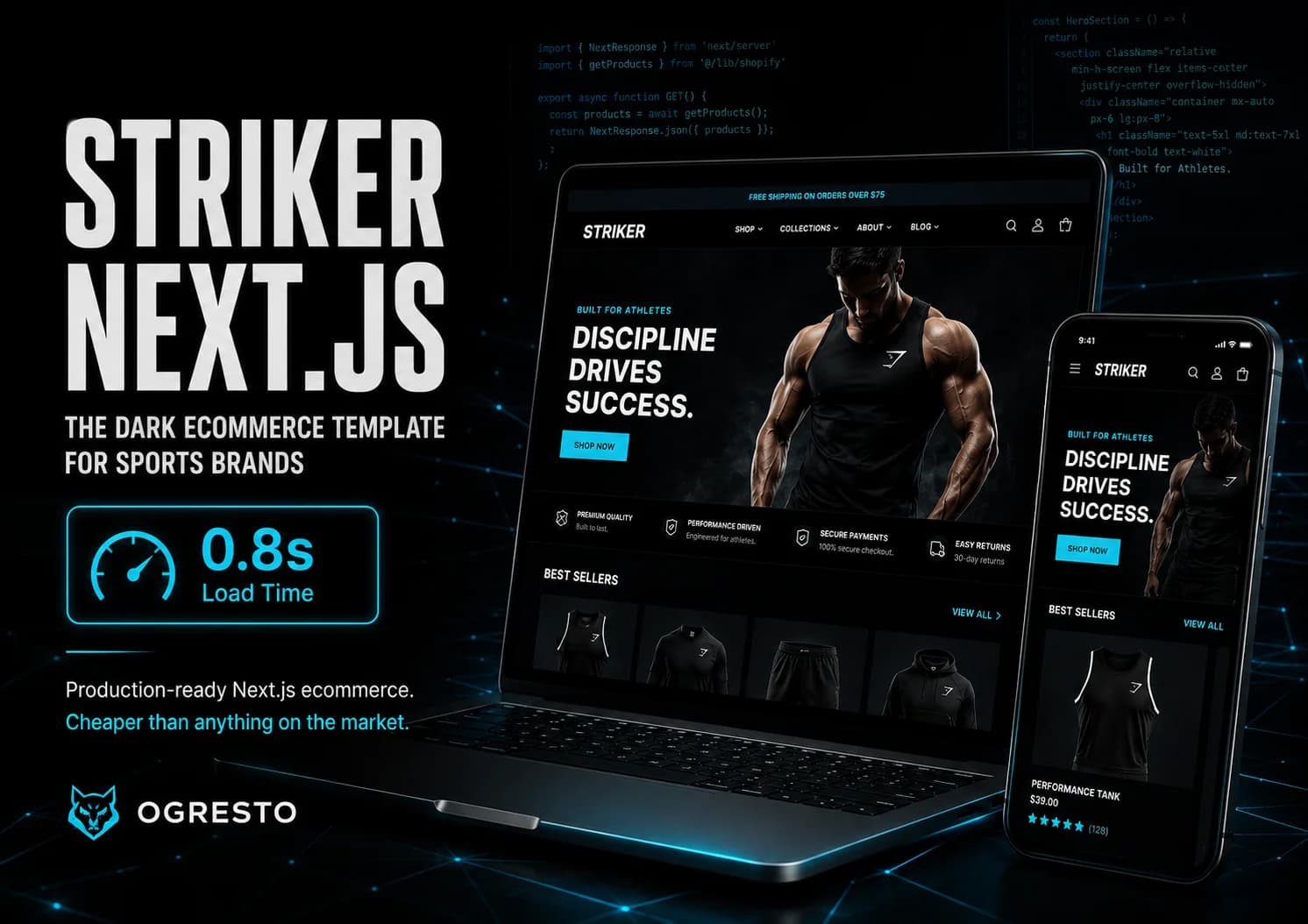
Skip months of frontend work. Connects to your Shopify store via Storefront API out of the box — product pages, cart, wishlist, all built in Next.js 16.
Next.js 16 App Router · TypeScript · Tailwind v4 · One-time $79
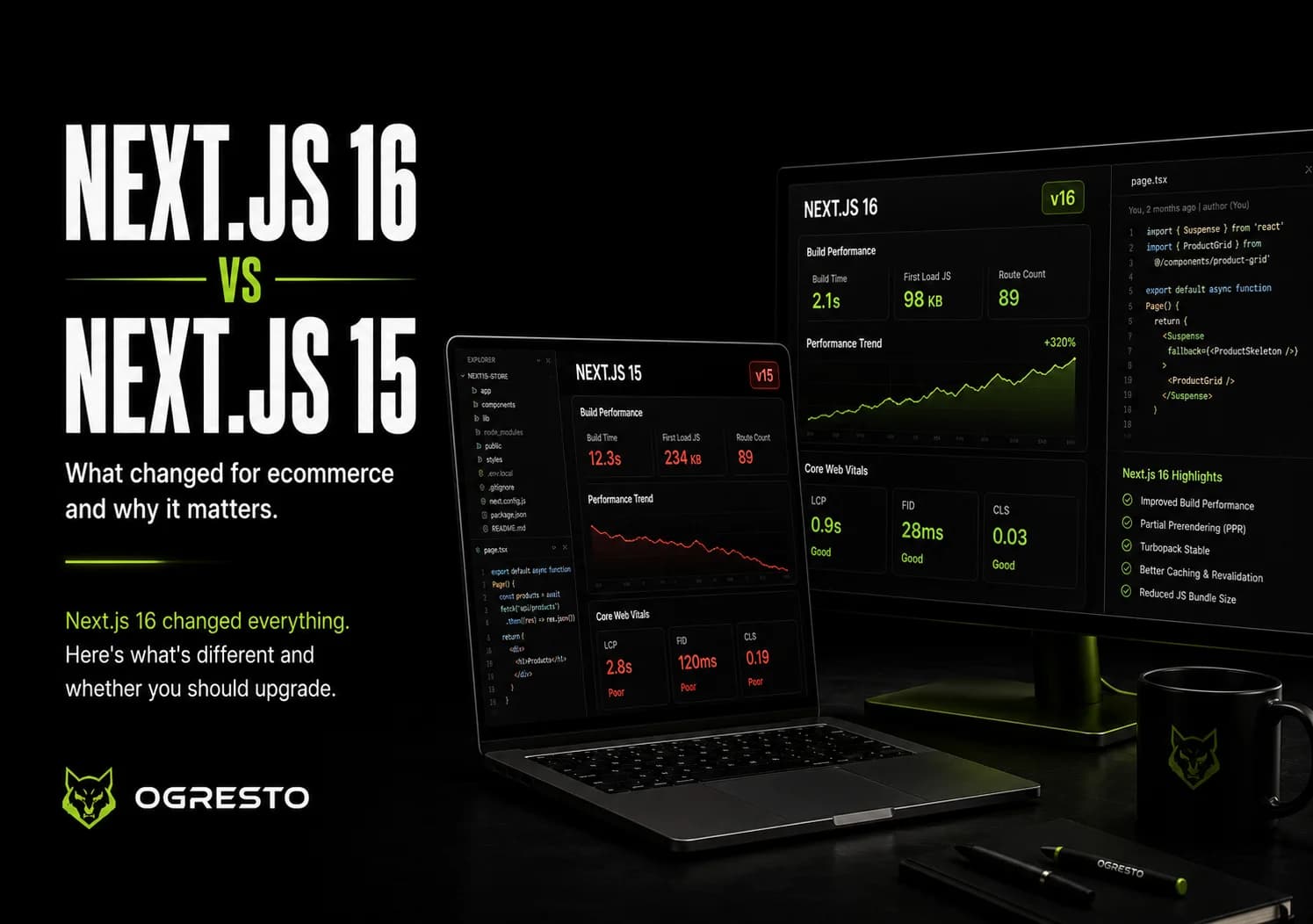
See also: Next.js 16 vs Next.js 15 — what changed for ecommerce.
Related Reading
FAQ — Building a Headless Shopify Store with Next.js
No. The Storefront API is available on all Shopify plans including Basic. Shopify Plus gives you access to additional APIs and a custom checkout, but headless functionality works on every plan.
You build the browsing and cart experience in Next.js. When a customer clicks checkout, they're redirected to Shopify's hosted checkout at checkout.shopify.com. You don't handle payments yourself.
The Storefront API is public-facing and safe to use in frontend code. It handles product browsing, cart, and checkout. The Admin API is private — it manages orders, inventory, and fulfilment, and must only be used in server-side code with private tokens.
Not on the same domain. You either use a Shopify theme or a headless frontend — not both. You can keep the Shopify theme for admin preview purposes, but your live store would point to your Next.js frontend.
The Shopify plan is $39-$399/month depending on tier. Vercel hosting for Next.js is free on the hobby plan, or $20/month for pro. Development cost depends on complexity — a basic headless store typically takes 4-8 weeks of development. See our Shopify store cost guide for a full breakdown.
Discussion
Join the conversation